Short answer
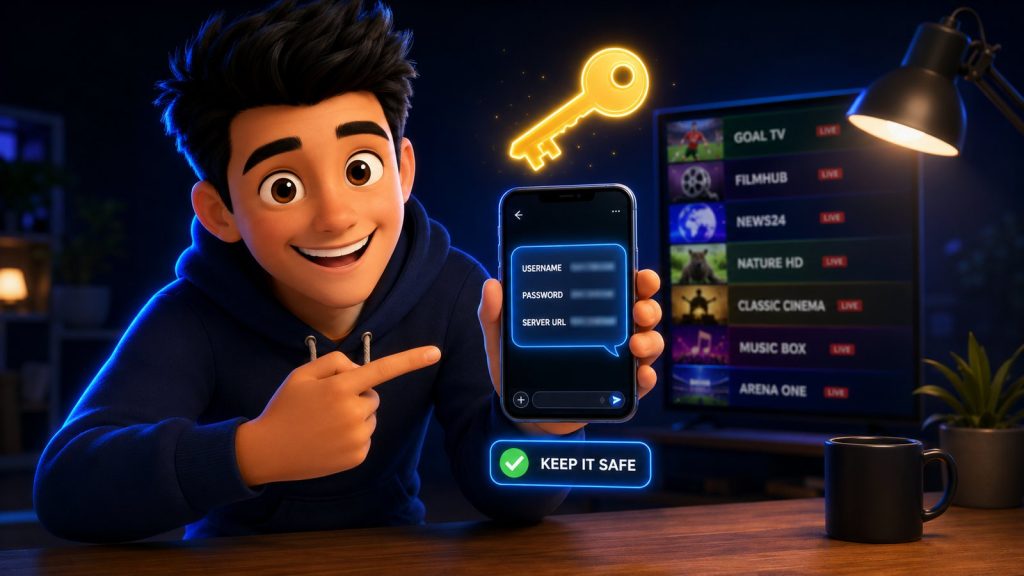
An IPTV username and password are created by your provider when your subscription starts, and they are sent to you — usually by email — within minutes of paying. You cannot invent them, generate them inside an app, or find a working set for free: the player app is an empty shell, and the login is the subscription. With StrimoIPTV you receive a username, a password and a server URL, and those three lines log you in on any player, on any device.
Almost nobody signs up for a TV service and then finds themselves confused about what they were sent. IPTV is the exception. You pay, an email arrives, and inside it sits a server address, a username, a password, possibly a long M3U link and a QR code — with no explanation of which of those things the app in front of you is going to ask for. This guide fixes that, in the order the problem actually appears.
Where an IPTV Username and Password Come From
There is one honest answer, and it disappoints people: your credentials come from your provider, and from nowhere else. They are generated when your subscription is created, they are tied to that subscription, and they expire when it does.
They are not something you invent, not something an app can issue you, and not something that exists independently of a service you are paying for. IPTV Smarters, TiviMate, OTT Navigator and every other player on the market are empty vessels. The app is the television set; the subscription is the aerial. Installing a free player and then hunting for a login is the single most common misunderstanding in this whole field — and it is why the app stores are full of one-star reviews from people complaining that a free player did not come with free channels.
In practice, credentials reach you in one of four ways:
- By email, right after payment. The usual route. Check your spam folder before you conclude nothing arrived — automated activation mail gets filtered constantly.
- In a customer dashboard. Better-organised providers give you an account area where the details live permanently, which beats an email you will eventually lose.
- By message, from a human. Common with small resellers. It works, but your only copy is sitting in a chat thread.
- Printed with a device. If you bought a preloaded box, the details are usually on a card in the packaging.
If you have paid and nothing has arrived after an hour, contact the seller before you touch a single setting. StrimoIPTV sends the full login automatically, and support can resend it if the mail goes astray.
What Each Part of the Login Actually Does
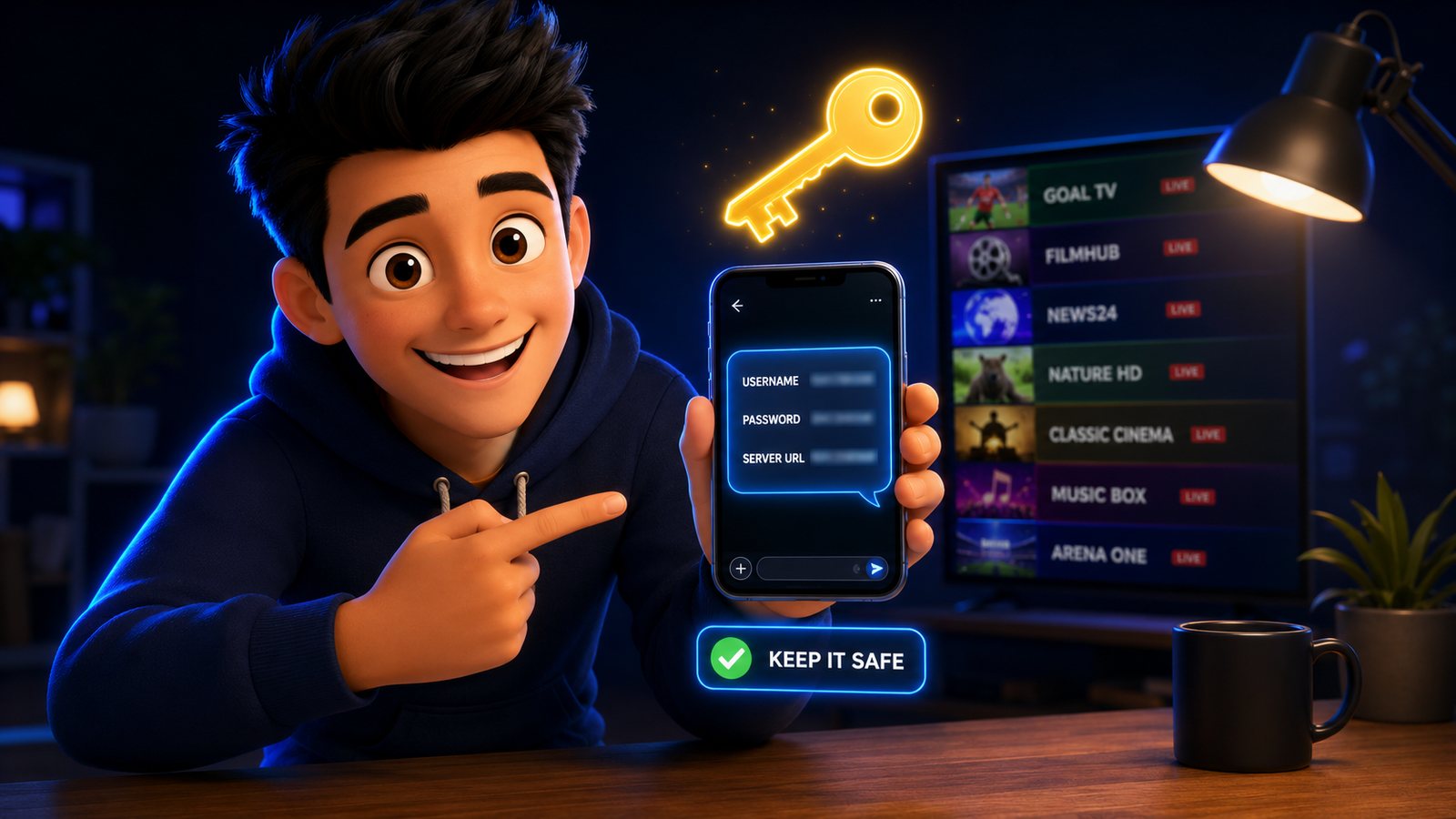
Open the email and you will usually find three or four items. Here is what each one is for — knowing this makes every app’s setup screen suddenly legible.
| What you were sent | Looks like | What it does |
|---|---|---|
| Server URL (portal / host / DNS) | http://your-server.com:8080 |
Tells the app which machine to ask for channels |
| Username | a7fk92xr |
Identifies your subscription on that server |
| Password | Kd83Lm0q |
Proves the subscription is yours |
| M3U link | http://your-server.com:8080/get.php?username=… |
The same three things glued into one URL |
| EPG / XMLTV link | http://your-server.com:8080/xmltv.php?… |
Supplies the TV guide |
| MAC address | 00:1A:79:XX:XX:XX |
Used instead of a login on portal boxes |
Two observations that save a lot of confusion.
First, the M3U link is not a second subscription. Look closely and you will see your username and password sitting inside the URL as parameters. It is the same credentials in a different wrapper, which is why you never need both at once — you use whichever format the app in front of you prefers.
Second, some services do not use a username and password at all. Portal boxes such as MAG and certain Formuler models identify themselves by hardware address: you send the provider your MAC, they register it, and the box logs itself in with no typing. If your provider asked for a MAC instead of sending a password, that is what is happening.
Entering Them Without Making the Usual Mistakes
Nearly every “my subscription does not work” message turns out to be a typing problem. Not a server problem, not an app problem — one character. Here is the routine that avoids it.
1. Pick the right login type first
Open your player and look at the first screen. If you have a server URL plus a username and password, choose the Xtream Codes option — it gives you a properly categorised channel list with movie and series sections, and it refreshes itself when the provider changes something. If you have one long link instead, choose the M3U / playlist option. Choosing the wrong one and then typing perfect details produces an error that looks exactly like a rejected password, which sends people off fixing the wrong thing for an hour.
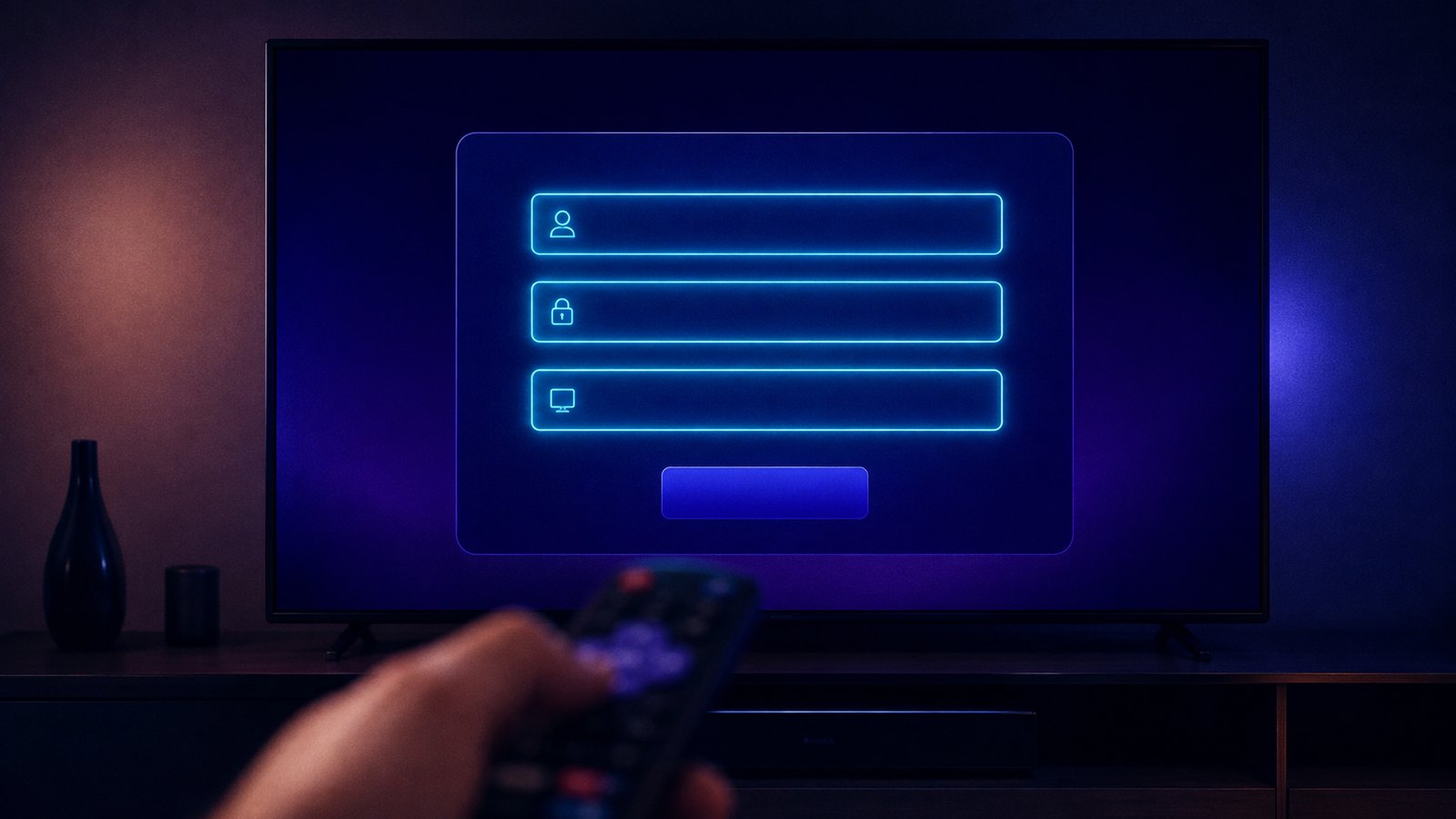
2. Type exactly what you were sent
- Case matters.
Kd83is notkd83. Phone keyboards love to capitalise the first letter — check it. - Include
http://and the port.your-server.comon its own will not connect;http://your-server.com:8080will. - No trailing slash, no trailing space. Copy-paste from an email drags a space along more often than you would think.
- Watch the look-alikes. 0 and O, 1 and l, 5 and S. If a login fails twice, this is usually why.
- Do not add anything. No
/c/, no/player_api.php— the app appends whatever it needs.
3. Paste instead of typing
On a phone or tablet, paste every field. On a Firestick, typing with a remote is where most errors are born — install a remote-keyboard app or use the Fire TV phone app and paste there instead. Two minutes of setup saves twenty minutes of “wrong password” that was never wrong.
One Login, Every Device
The same username and password work everywhere. There is no separate iPhone login and Android login, and you do not need a second subscription for a second TV. You install a player on each device and enter the identical three lines.
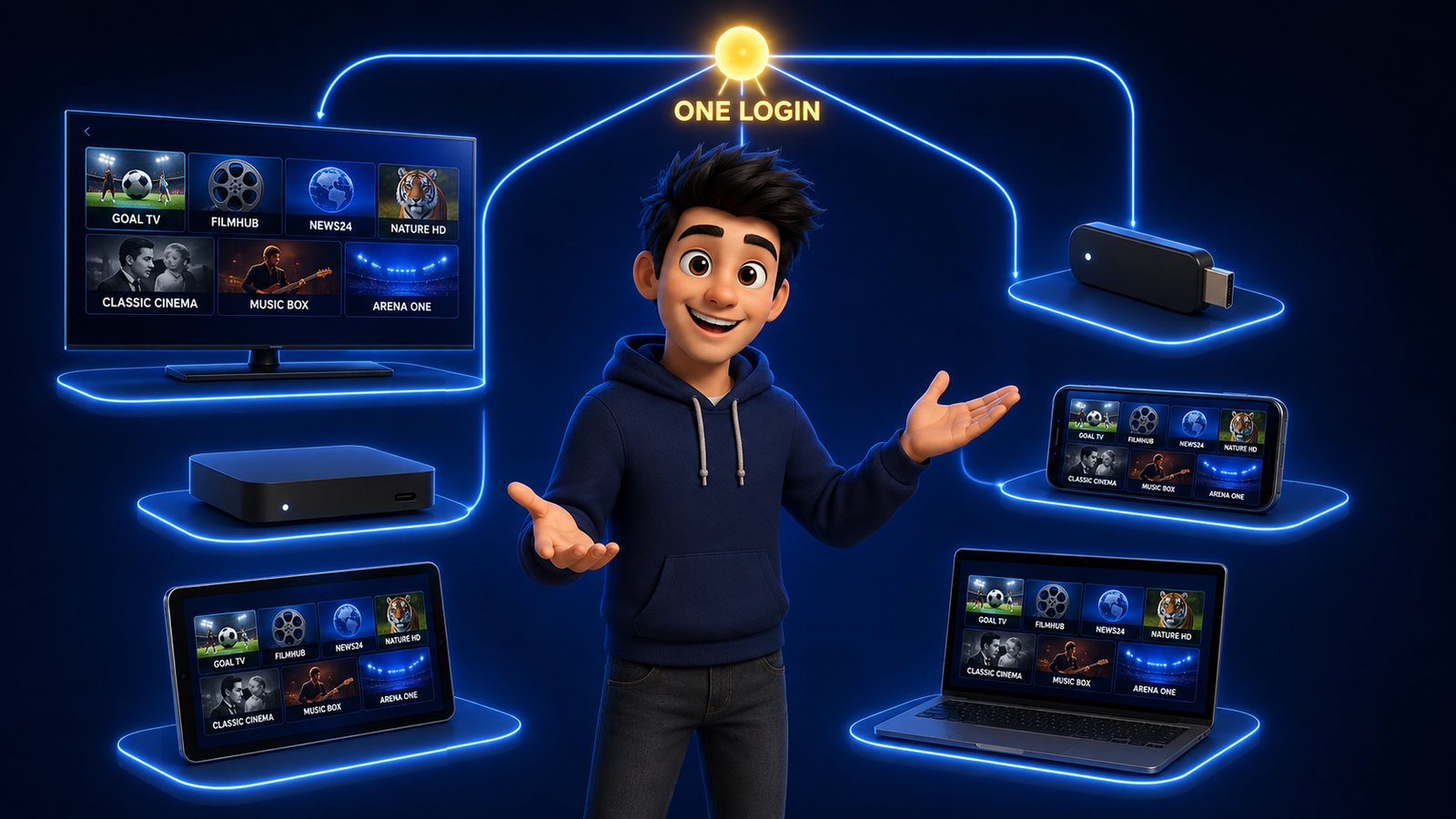
What is limited is how many streams can play at the same time. That number comes from your plan, not from the app. Install on six devices if you like — just do not expect all six to play at once on a single-connection plan. Our best IPTV player apps guide covers which app to put on which device, and the IPTV boxes guide covers the hardware.
When the Login Stops Working
Credentials that worked yesterday and fail today almost always have one of these five causes. Work down the list in order.
| What you see | Most likely cause | Fix |
|---|---|---|
| “Invalid username or password” | A typo, or an expired subscription | Re-paste all three fields; if they are right, check your renewal date |
| “Max connections reached” | Another device is already streaming | Close the app fully elsewhere, or add connections to your plan |
| Logs in, but no channels load | Your ISP is blocking the server | Try mobile data — if it works there, the block is your ISP |
| Worked, then suddenly stopped | Credentials shared or leaked | Ask support to reissue the login |
| Everything loads but buffers | Network, not credentials | See our buffering fix guide |
One extra check worth ninety seconds: try the same login in a second player app. If it works there, the problem is the first app’s settings, not your subscription.
Keeping Your Credentials Safe
Your login is worth money to somebody else, and IPTV logins get traded in group chats constantly. A few habits keep yours yours:
- Never post it anywhere public. Forums, comments, Telegram groups — a leaked login gets hammered until the server locks it.
- Do not share it with more people than your plan allows. The “max connections” wall is not a punishment, it is arithmetic.
- Save it somewhere you will still have it in a year. A password manager or a note, not just the email.
- Screenshot the activation message. Free, takes a second, saves a support ticket later.
- Ask for a reissue if you suspect a leak. Any decent provider will regenerate the password on request.
“Free IPTV Username and Password” — Why Those Never Work
Search that phrase and you will find pages of lists, videos and Telegram channels promising working logins. They fall into three groups: dead credentials that expired months ago, stolen credentials that stop working the moment the real owner complains, and pages that exist only to make you install something you should not install.
Even the rare live one is useless in practice — a leaked login is shared with hundreds of people at once, so it sits permanently at its connection limit and buffers on every channel. You spend an evening chasing a stream that was never going to hold, when a legitimate plan costs less than a couple of coffees a month.
It is worth comparing a few providers before you commit. Independent lineups such as IPPlayTV and Sharo5 are useful reference points when you are weighing channel packs and connection limits, and if picture quality is your priority, Tivo8K breaks down what genuinely sharp 4K IPTV requires. Whichever service you pick, the login format is the same — and your player never locks you to a single provider.
Frequently Asked Questions
How do I get an IPTV username and password?
You buy a subscription. The provider generates the credentials and sends them to you, normally by email within a few minutes of payment. With StrimoIPTV the activation message contains your username, password and server URL, ready to paste into any player.
Can I create my own IPTV login?
No. Credentials are issued on the provider’s server; there is nothing to create on your side. An app that asks for a login is asking for the one your provider gave you.
Do I need the M3U link as well as the username and password?
No — they are two formats of the same thing. Use the Xtream Codes fields (server URL, username, password) if your app offers them, because you get categories and a proper TV guide. Use the M3U link only if the app has no Xtream option.
Why does my IPTV say "invalid username or password"?
Nine times out of ten it is a typo, a missing http:// or port, or a capital letter added by your keyboard. Re-paste all three fields. If they are definitely correct, check whether your subscription has expired or hit its connection limit.
Can I use the same login on two TVs?
You can install it on as many devices as you like. How many can stream at the same time depends on the number of connections in your plan — StrimoIPTV lists this clearly on the pricing page.
What is the server URL and where do I find it?
It is the address of the machine that streams your channels, and it arrives in the same message as your username and password — something like http://your-server.com:8080. Enter it complete, with the http:// and the port number.
I lost my IPTV login. What now?
Search your email for the activation message first, including spam. If it is gone, contact support with the email address or order number you paid with and ask them to resend it — they can look it up in seconds.
One login. Every device. Sent in minutes.
StrimoIPTV gives you a username, password and server URL the moment you subscribe — 30,000+ live channels and 140,000+ films and series from $4.58 a month, in the player of your choice.